You can customize which data fields you see in the Contracts tab based on your organization’s data package. To add or rearrange information in your view:
-
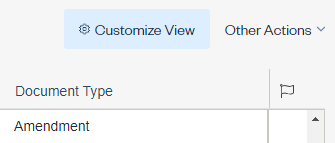
Go to the Contract Table and select “Customize View” on the upper right
-
A new window will open
-
Search for terms by entering a word or field name – or narrow results by ‘category’ to find fields groups more easily
-
Select the fields in the Available Fields section you wish to see and add to the right panel by dragging them over or clicking the arrows in the middle
-
Use the up/down arrows for fields in the Customizable Fields section to set your preferred order
-
Click “Save View” once complete
NOTE: You can also reorder columns in the Contract Table view by dragging columns over.
Comments
0 comments
Please sign in to leave a comment.