Newly Designed Contracts Page
With this release, we are upgrading the Contracts Table with the following new features and enhancements:
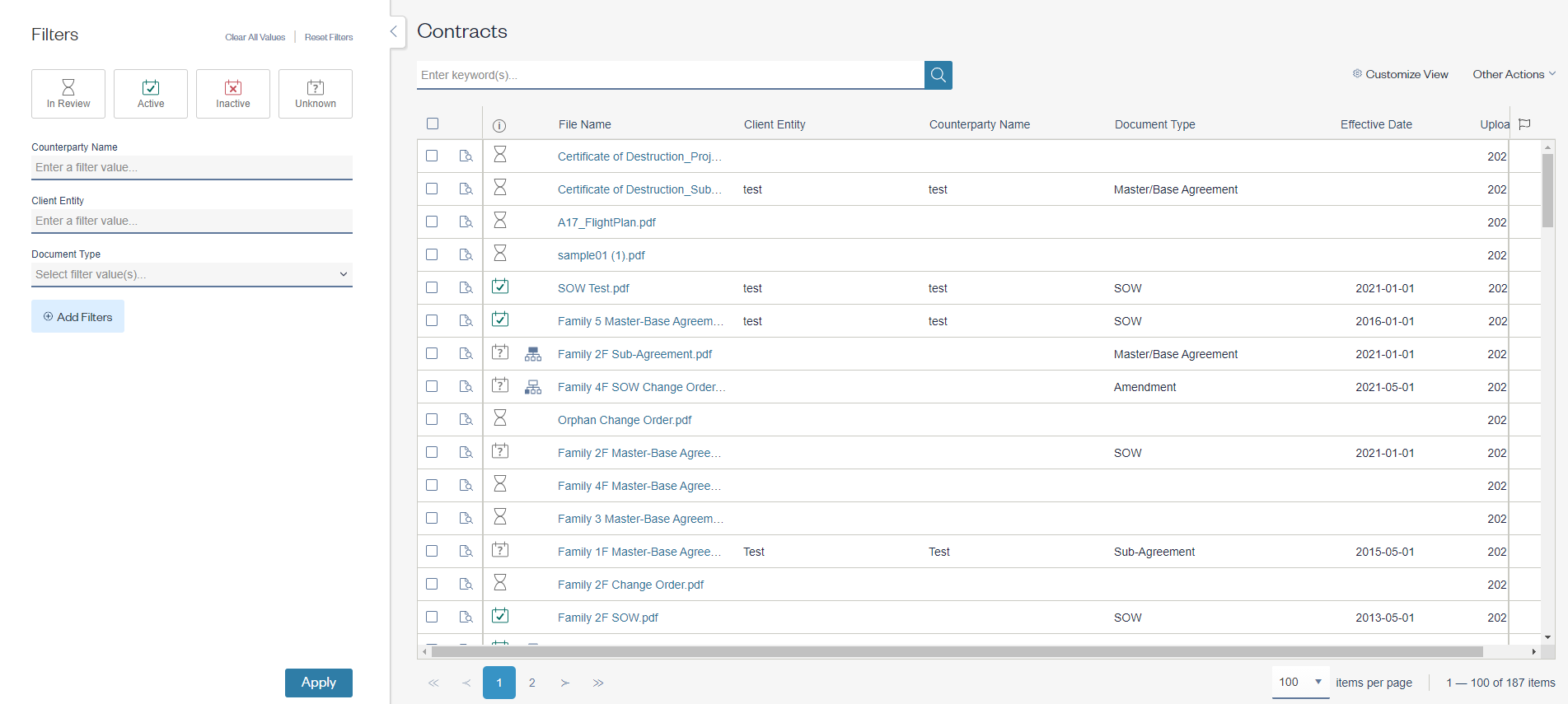
The Filter Panel
- The filter panel appears now on the left side of your screen.
- Should you wish to add more filters, the “Add Filters” option is below your current filters. This was previously labeled “Advanced” and located at the top of the panel.
- We’ve also placed the “Clear All Values” option and the “Reset Filters” option at the top of the panel for ease. You can choose to keep your filters but clear the criteria – or remove all the filters you’ve added by using these options.
Document Preview
You no longer need to open a contract to verify if it’s the contract you need. With the new Document Preview feature, you can quickly view the contract without leaving the Contracts tab.
- A new Document Preview icon appears next to the checkboxes on the left.
- Click on the Document Preview icon to open a panel view on the right. The contract you are previewing is highlighted in the contract grid to help you keep track of which document you are viewing.
- Click on the View icon in the Preview Panel to open the full Contract Details page. You also can click to Download the contract from this panel as well.
View More Items in the Contracts Table
- If you have multiple pages of results, you can select to view more results per page. Options include 25, 50 or 100 results.
Family Access from the Search Results
- A new Family Icon will appear next to the Document Preview icon when a Family View is available. This icon appears for any family with more than one document – and a family status of Family Master or Family Member.
Quick Access to Actions
- Customize View. This option allows you to choose and save the data fields you want in your Contracts grid instead of the default view.
- Other Actions. If you are authorized to download documents or data, you can now access these by clicking on “Other Actions” above the Contracts grid. The checkboxes are now available on the left side of the Contracts grid to make your selections.
Additionally, please note the Out of Scope and Contract Replacement flags are now located on the right.
Comments
0 comments
Please sign in to leave a comment.