The following features and enhancements have been deployed to KI as part of the February 28th release.
Features & Enhancements
Saved Searches
Saved Searches allows you to save your KI filter and/or keyword searches to quickly and easily recreate these searches. In order to do complex contracts analysis, you may have to leverage your data in complex ways. To save you time from having to repeatedly create these searches for your analysis, you are now able to save your searches.
How to create a Saved Search
- Navigate to the Contracts Page, ‘Saved Searches’ tab and click on ‘Manage Folders’.
- Click on ‘Add Folder’.
- Create a saved search folder like ‘My Saved Searches’.
- Once the folder is created, you can now save your searches.
- How to create a saved search.
- Select the Save Search button on the Filter tab
- A Search must be applied in order to save the Search
- Column order and column sizes will also be saved
- When ready, click on ‘Save Search’ at the bottom of the Filter tab
- Name your search, add it to a folder, and click ‘Save’.
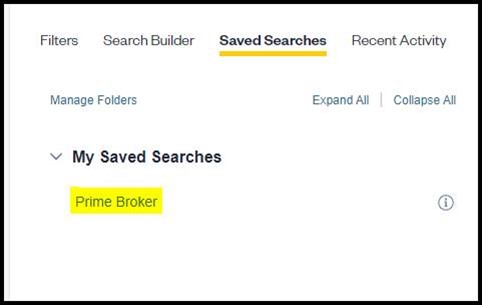
- To access your saved search, click on the ‘Saved Searches’ tab then click on the search name.
Keyword Preview
You can leverage the Knowable Insights search experience to find certain terms and provisions within your agreements. In order to verify if your terms are part of the contract’s text, you can now ‘Keyword’ Preview’ to show the most relevant match in the contract text with the keywords and/or phrases that you searched.
- This new feature shows a sample of the contract text that was returned from a keyword search
- Keyword Preview toggle by default will appear after a keyword search
- Can be toggled off
- Shows the most relevant result from any returned contract
- If a record is returned because the search found only structured data results, you will see help text to let you know the search didn’t find anything in the contract text
Search Carryforward & Document Details Page
Now when you have a keyword search enabled on the Contracts Page and then click into Document Details Page (by clicking into the File Name hyperlink for example), KI will recreate that search in the pdf search bar of the Enhanced tab and the Fields tab search bar. This makes it easier for you to seamlessly continue your analysis from the contracts page into a single document analysis.
- The pdf search bar for the Enhanced Tab viewer now reflects the same default behavior as the Contracts Page. It will now search for all the search terms in any order without an exact match
- The checkbox if "Match exact phrase" allows you to search on the exact combination of search terms in the pdf viewer (it’s like adding "" on the Contracts Page).
- If a search has the "" on the Contracts Page, KI will trim them off and automatically apply the Match exact phrase checkbox when you go to the Document Details Page
Comments
0 comments
Please sign in to leave a comment.